 Faber
GitHub
Browser
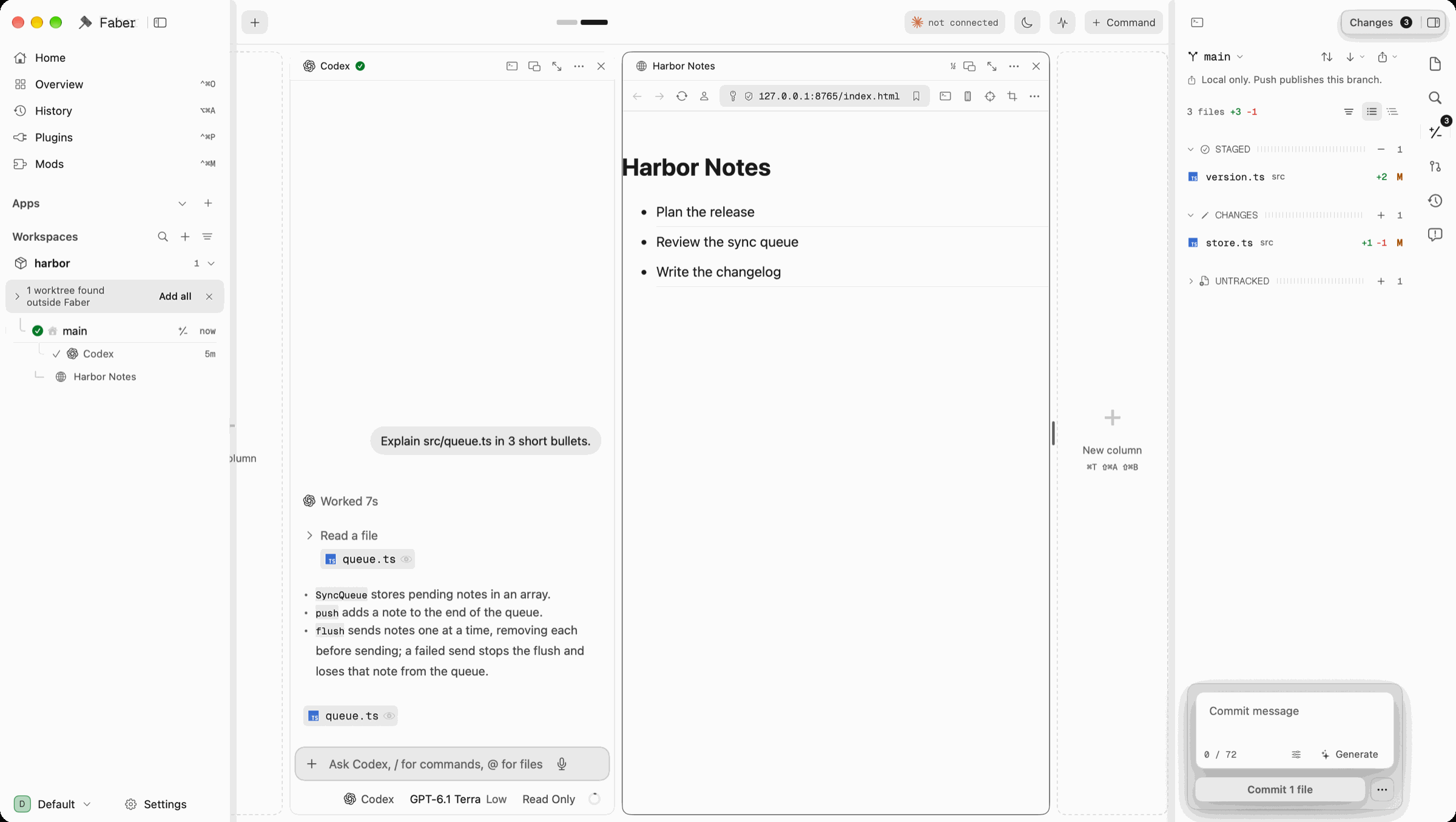
Browser columns share one signed-in profile across worktrees. Named profiles keep their own logins, and private columns keep nothing.
Keys
| Action | Key |
|---|---|
| Address bar, new page, reopen closed page | Cmd L, Cmd T, Shift Cmd T |
| Back, forward, reload | Cmd [, Cmd ], Cmd R |
| Bookmark, show bookmarks | Ctrl Cmd B, Opt Cmd B |
| History (not in private columns) | Cmd Y |
| Fill saved login | Shift Cmd L |
| Reader mode | Opt Cmd R |
What is built in
- Security indicator with certificate details, site permissions, bookmarks, downloads and extension buttons in the address bar.
- Page menu: zoom, find, annotate, pause trackers, clear site data, open in default browser, sign in with another browser.
- Passwords live in the macOS keychain and are never offered for saving in private columns.
- Web extensions from the Chrome Web Store, a folder, a zip or crx, or a Safari extension, running on WebKit’s extension engine. There is no native messaging.
- Faber can be the default browser; links from other apps open in a column of the current worktree.
Settings
Settings, Browser covers the default browser, link routing rules, tracker blocking, HTTPS upgrade, Global Privacy Control, passwords, clear browsing data, the download folder and extensions.
Agent control
With the permission granted, agents can snapshot, click, fill, screenshot and read the console of browser columns through the control API.